Flutter CallbackShortcuts: Speed Up Dev Test Cycles
Speed up Flutter manual testing with CallbackShortcuts — keyboard shortcuts for cache, forms, and passwords. Debug-only, no Intent/Action boilerplate.
Clearing the app cache, filling the same form ten times, retyping the same test password… what a grind. Every manual test cycle cost 30 seconds of repetitive fiddling.
Then I discovered CallbackShortcuts in Flutter — a lightweight way to wire keyboard shortcuts straight to debug helpers, without the usual Shortcuts + Actions ceremony.
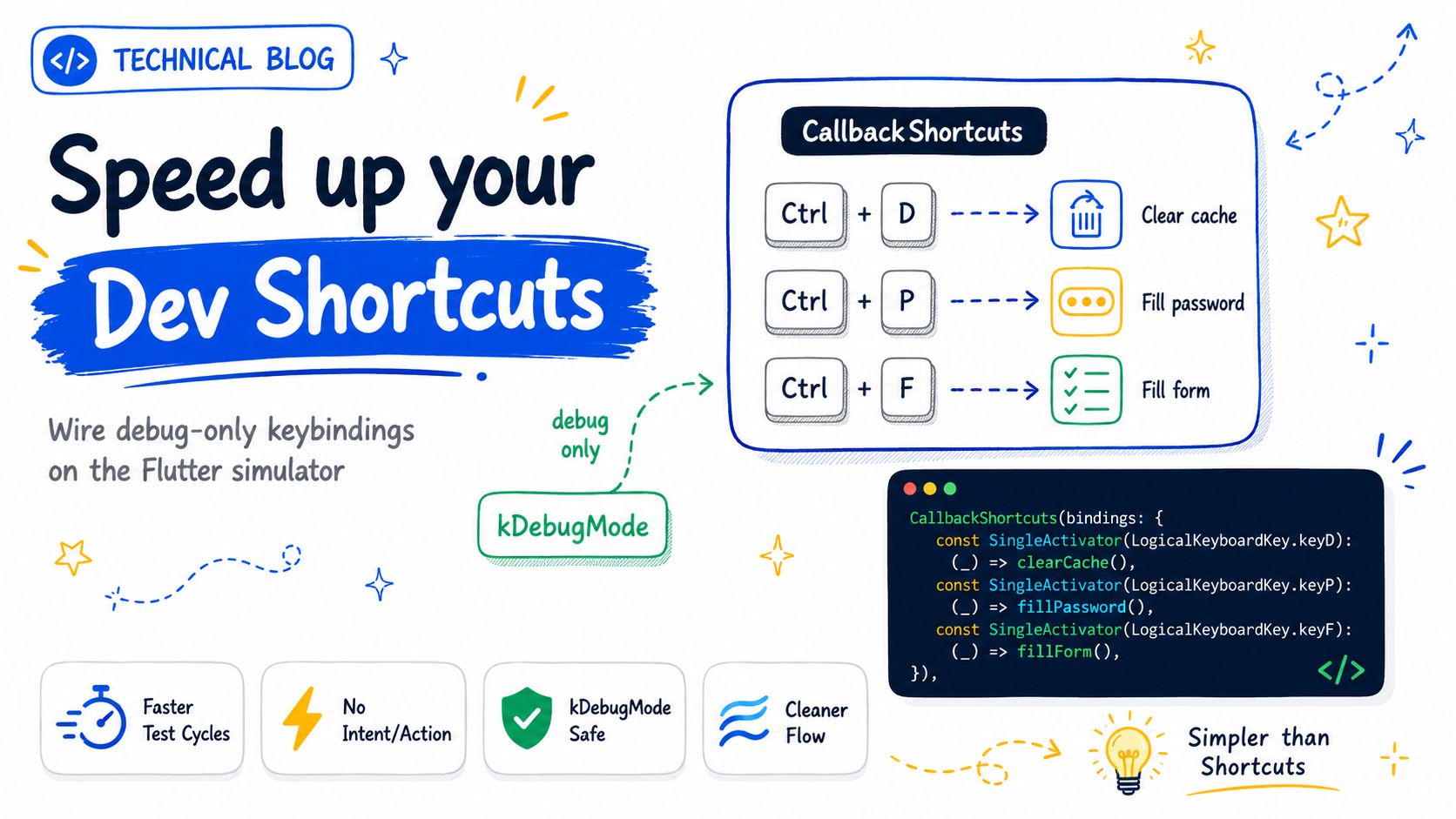
No Intent class, no Action
Flutter's classic shortcut system (Shortcuts + Actions) requires declaring an Intent class, an Action, then wiring them together. That's the right choice for user-facing shortcuts you ship in production — searchable actions, semantics, predictable behavior across platforms.
For throwaway debug tooling, it's overkill. CallbackShortcuts is just a map binding a key combination to a function:
- Ctrl + D → clears the cache
- Ctrl + P → injects the test password
- Ctrl + F → fills the whole form
CallbackShortcuts(
  bindings: {
    const SingleActivator(LogicalKeyboardKey.keyD, control: true): clearCache,
    const SingleActivator(LogicalKeyboardKey.keyP, control: true): fillPassword,
    const SingleActivator(LogicalKeyboardKey.keyF, control: true): fillForm,
  },
  child: Focus(autofocus: true, child: app),
)
On macOS, control: true maps to the Control key (not Command). Swap to meta: true if you prefer Cmd-based shortcuts on Apple platforms.
Don't skip the Focus widget
CallbackShortcuts only fires when a descendant has keyboard focus. Wrapping your app in Focus(autofocus: true, …) is the minimal fix so shortcuts work as soon as the app loads. Without it, you'll wonder why nothing happens — ask me how I know.
What the handlers actually do
The functions can be as simple as you need. Clear cache might call SharedPreferences.clear(). Fill form might push test values into your controllers. The point is not elegance — it's shaving seconds off every manual test pass:
Future<void> clearCache() async {
  final prefs = await SharedPreferences.getInstance();
  await prefs.clear();
  debugPrint('Cache cleared');
}

void fillPassword() {
  passwordController.text = 'test-password-123';
}
Keep them in a dev/ folder or behind the same kDebugMode guard so they never leak into production code paths by mistake.
Invisible in production
Wrap everything behind kDebugMode: the shortcuts vanish entirely from the release build. No risk of a user triggering a debug tool by accident, and tree shaking keeps the helper functions out of your shipping binary when they're only referenced from debug paths.
Widget wrapWithDevShortcuts(Widget app) {
  if (!kDebugMode) return app;
  return CallbackShortcuts(
    bindings: { /* … */ },
    child: Focus(autofocus: true, child: app),
  );
}
A practical place to hook this in is your root MaterialApp builder, or a debug-only wrapper around the screen you're iterating on.
When to reach for CallbackShortcuts
Use CallbackShortcuts when you need quick developer productivity wins during feature work — resetting state, seeding forms, jumping to a screen. Stick with Shortcuts + Actions when the shortcut is part of the product (undo/redo, save, navigation) and needs to survive into release builds with proper intent handling.
The result
What used to cost me 30 seconds per cycle is now instant. Over a day of building a form screen, that's dozens of minutes back — and far less friction to test often.
If you haven't wired Flutter keyboard shortcuts for debug yet, start with one binding (cache clear is a good first win) and add more as you feel the pain.
What about you — which dev shortcuts save you the most time?